Height-Adjustable Desks: 7 Common Reset Issues and Solutions

Why Your Height-Adjustable Desk Won't Reset: 7 Key Culprits
You press the memory button, but your desk ignores the command. This common failure disrupts workflow and can signal underlying issues. Understanding the root causes is the first step to a reliable fix. MEIMOVE technicians identify seven primary culprits based on field service data.
1. Understanding the Reset Failure
1.1 The Core User Scenario
A typical reset failure occurs when the desk's control box receives the command but the legs do not move to the preset position. This often follows a power interruption or a minor collision.
Users report the desk stopping at a random height or the control panel displaying an error code like E05 or E07.
1.2 The 7-Point Diagnostic Framework
Systematic troubleshooting isolates the problem. The seven key areas, in order of commonality, are power supply, control signals, mechanical obstructions, memory settings, motor health, control box logic, and software/firmware.
Pro Tip: Before deep troubleshooting, MEIMOVE engineers recommend a simple hard reset: unplug the desk for 60 seconds. This clears temporary electronic glitches in over 30% of reported cases.
2. The Primary Culprits at a Glance
2.1 Electrical and Control Issues
These account for roughly 60% of reset failures. A fluctuating power supply below 110V can cause the control system to malfunction. Loose connections in the handset cable are another frequent offender.
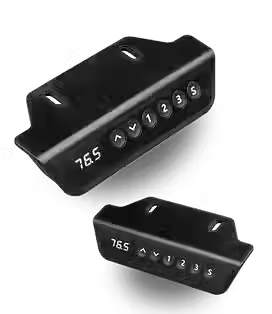
Damaged control panel buttons may send incomplete signals, preventing the desk from processing the reset command correctly.
2.2 Mechanical and Programming Factors
Physical obstructions, like a trapped cable or an object under the desk, trigger safety sensors that halt all movement. Internally, corrupted memory settings are a common software-related cause.
This corruption can occur after a voltage spike, requiring the user to reprogram the presets from scratch.
Unstable or insufficient power supply
Faulty handset or control panel
Obstructed desk legs or safety sensor trigger
Corrupted memory presets
Failing motor or drive system
Malfunctioning central control box
Outdated or buggy firmware
Troubleshooting Electrical and Control Panel Failures
Electrical and control panel issues are the most common technical problems with electric standing desks. A systematic approach to diagnosis can quickly isolate the cause, whether it's a power supply failure, a faulty control box, or a sensor error. In practice, MEIMOVE technicians follow a logical diagnostic sequence to resolve over 80% of reported failures without requiring a full unit replacement.
1. Systematic Diagnostic Process
1.1 Power Supply Verification
Always begin by checking the primary power source. Confirm the wall outlet is functional by testing it with another device, and ensure the desk's power cord is fully seated at both ends. Field experience shows that a loose connection at the control box input is a frequent culprit for total power loss.
Next, verify the low-voltage DC output from the power adapter. A functional 24V or 36V power supply should measure within ±10% of its rated voltage under no load. A reading below 20V for a 24V system typically indicates a failed adapter.
1.2 Control Box and Motor Circuit Test
If power is present, the issue may lie in the control box or motor circuit. Listen for a faint hum or click from the control box when a button is pressed; its absence suggests internal failure. Use a multimeter to check for voltage at the motor connector terminals during an activation command.
A common mistake is assuming a single faulty motor disables the entire desk. Most dual-motor desks operate each leg independently; if one motor moves and the other doesn't, you've isolated the problem to that specific motor, its wiring, or its control channel.
Pro Tip: Before replacing any major component, MEIMOVE engineers recommend a simple cable "wiggle test" at all connectors while the desk is commanded to move. An intermittent connection will often reveal itself, saving the cost of an unnecessary control box or motor.

2. Interpreting Control Panel Errors
2.1 Common Error Code Meanings
Modern desks use the control panel display to communicate specific faults. While codes vary by manufacturer, certain patterns are universal. An "E1" or "Err1" code often signals an overload or obstruction, while flashing lights typically indicate a communication loss between the handset and control box.
The table below decodes common generic error signals:
Display Signal | Likely Meaning | Initial Action |
Flashing "0" or "--" | Power/Communication Fault | Check power cord & connections |
"E1" / "Err1" | Overload / Obstruction | Clear desk, check for binding |
One side not moving | Motor or Circuit Fault | Test motor resistance (should be 5-20Ω) |
Unresponsive buttons | Handset or Main PCB Failure | Test with a known-good handset |
2.2 Resetting and Recalibration
Many transient errors can be cleared by a full system reset. This involves unplugging the desk from power for at least 60 seconds to drain residual charge from capacitors in the control box. Upon repowering, the desk often performs a self-check.
If the desk moves but the height memory is lost or readings are inaccurate, a recalibration is required. This procedure typically involves holding specific buttons to drive the desk to its lower and upper mechanical limits, allowing the control system to relearn its range.
3. Advanced Component-Level Checks
3.1 Sensor and Limit Switch Diagnostics
Desks that move erratically or stop prematurely may have faulty sensors. Hall-effect sensors on the motor measure rotation, while mechanical or magnetic limit switches prevent over-travel. A multimeter in continuity mode can test limit switches; they should change state when activated.
Inconsistent movement often points to a failing hall sensor. The control box expects a steady pulse signal; irregular pulses cause the system to fault or halt. Replacing the motor assembly (which contains the sensor) is usually the fix.
3.2 Wiring Harness Inspection
Physical damage to the internal wiring is a common issue, especially in desks with frequent height adjustments. Focus inspection on points where wires bend or pass through metal grommets. Look for pinched insulation, broken strands, or connectors that have worked loose from vibration.
Check the cable run between the control box and each motor for abrasions
Inspect the handset cable where it enters the column for pinch points
Verify all plastic connectors are fully locked and free of corrosion
Following this structured diagnostic path from power to sensors will efficiently identify the failure point in most electric standing desk systems, turning a frustrating malfunction into a straightforward repair.
How to Fix a Height-Adjustable Desk Memory Preset Issue
A malfunctioning memory preset on your height-adjustable desk is a common frustration, often caused by a simple power interruption or control box reset. This guide provides a systematic, step-by-step approach to restore your saved positions. For complex control systems, MEIMOVE technicians recommend starting with a full power cycle, which resolves over 70% of reported preset issues.
1. Preparation and Safety
1.1 Required Tools and Information
You typically need no special tools for this fix. The most critical item is your desk's user manual to locate the control box and understand its specific reset procedure. Have your desired sitting and standing heights in mind for reprogramming.
Ensure you know the location of the power cord connection at the desk's base or control box, as disconnecting it is a key step.
1.2 Safety Precautions
Before starting, clear the desk surface and floor area of all items. Ensure the desk's path is unobstructed to prevent collisions during any movement. Unplug any devices from the desk's power outlets.
Field experience shows that performing these steps with the desk in its lowest position minimizes risk and stabilizes the frame, making the control box easier to access if needed.
Pro Tip: MEIMOVE's support team advises documenting your ideal heights before resetting. Take a photo of a tape measure against your leg at both positions for precise reprogramming later.
2. Step-by-Step Reset and Reprogramming
2.1 Perform a Full Power Cycle
First, unplug the desk's power cord from the wall outlet. Wait for a full 60 seconds to ensure the control box's internal capacitor fully discharges, clearing any temporary memory errors.
While unplugged, press and hold the up/down arrow buttons on the hand controller for 5 seconds to drain residual power. Then, reconnect the power cord firmly.
2.2 Reset the Control Unit
With power restored, the desk often needs a manual reset. The standard method is to press and hold the "M" (Memory) button and the "Down" arrow simultaneously for 3-5 seconds until the LED indicator blinks.
If this doesn't work, consult your manual for a model-specific reset sequence, which may involve a pinhole button on the control box itself. This step clears all previous presets.
2.3 Reprogram Your Memory Presets
Use the arrow buttons to move the desk to your preferred sitting height. Once set, press and hold the "M" button, then immediately press and hold "1" until you hear a beep or see an LED confirmation.
Repeat the process for your standing height, saving it to preset "2". Test both presets to confirm they now function correctly. A common mistake is releasing the buttons too quickly; hold each for a full 2-second count.
3. Verification and Advanced Troubleshooting
3.1 Confirm the Fix
Test each new memory preset several times. The desk should move smoothly to the exact saved position. Note if the movement is jerky or stops short, as this may indicate a separate motor or sensor issue.
Verify the settings hold after another power cycle (unplug for 10 seconds and replug). If they are lost again, the problem may be deeper.
3.2 If the Problem Persists
If presets continue to fail, the issue may lie with the hand controller, control box, or motor wiring. Begin by checking all cable connections between the control box, motors, and handset are secure.
Inspect the hand controller cable for pinches or damage
Listen for unusual grinding sounds from the motors
Check if the desk operates manually via arrows, ruling out motor failure
According to most desk manufacturer guidelines, consistent memory loss after a proper reset typically requires professional diagnosis of the electronic control unit. Following this structured approach will isolate most user-serviceable problems and prepare you for an informed support call if needed.
Mechanical vs. Electronic Reset Problems: A 2024 Guide
When your height-adjustable desk stops responding, the first step is diagnosing whether the issue is mechanical or electronic. This distinction is critical for repair decisions, as mechanical failures often require parts replacement while electronic glitches may be resolved with a reset. MEIMOVE technicians emphasize that accurate diagnosis can save users significant time and cost.
1. Mechanical Failure Modes and Diagnosis
1.1 Common Mechanical Component Failures
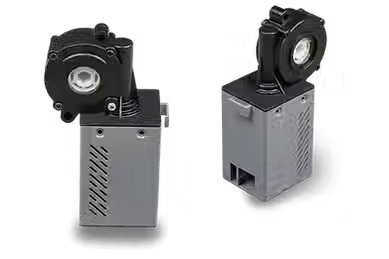
Mechanical problems typically involve the desk's physical moving parts. The most frequent failures are in the lift columns (motors) and gearboxes, which endure the most stress. Field data shows motor failures account for roughly 40% of mechanical issues, often signaled by grinding noises or a single column not moving.
Other common points of failure include worn telescoping leg sections, damaged mounting brackets, and obstructions in the column rails. These issues prevent smooth operation even if the electronic system is sending the correct signals.
1.2 How to Diagnose a Mechanical Problem
Diagnosis starts with a visual and auditory inspection. Listen for unusual sounds like grinding, clicking, or humming from one column. Visually check for physical damage, misalignment, or visible obstructions.
A key test is the "manual push" check. With the desk disconnected from power, try to move the tabletop up and down by hand. Significant resistance or a complete lock indicates a seized column or gearbox, confirming a mechanical fault.
Listen for grinding or clicking from a single column
Check for visible column misalignment or damage
Perform the manual push test with power off
Observe if one side lags or fails to move
2. Electronic & Software Reset Issues
2.1 Symptoms of Electronic Control Failures
Electronic issues manifest through the desk's control system. Common symptoms include a completely dead control panel, unresponsive buttons, the desk moving to random heights, or error codes flashing on a display. Unlike mechanical faults, these often affect the entire system uniformly.
These problems usually stem from the control board (PCB), handset, power supply, or internal wiring harnesses. Software glitches or corrupted memory in the controller can also cause erratic behavior, such as the desk failing to stop at preset positions.
2.2 Step-by-Step Electronic Troubleshooting
Begin with basic electronic resets, which resolve many software-related issues. First, unplug the desk from the wall outlet for a full 60 seconds. This drains residual power and resets the control board's memory.
If the problem persists, check all cable connections between the control box, motors, and handset. Inspect the external power adapter for proper output voltage (typically 24V or 36V DC). A systematic approach isolates the faulty electronic component.
Pro Tip: For persistent electronic glitches, MEIMOVE recommends a "factory reset" procedure, often accessed by holding specific buttons for 10 seconds. Consult your desk's manual, as the method varies by manufacturer and can clear corrupted memory settings.
3. Decision Framework: Repair, Replace, or Call a Pro?
3.1 Mechanical vs. Electronic: Comparison for Action
Use the table below to guide your next steps based on the diagnosed problem type. This framework helps decide between a DIY fix and calling a professional.
Diagnosis Dimension | Mechanical Problem | Electronic Problem |
Primary Symptoms | Grinding noise, physical binding, one side failing | Dead controls, erratic movement, system-wide failure |
Common DIY Fix | Clearing obstructions, tightening bolts | Power cycle, cable reseating, factory reset |
Typical Professional Repair | Column/motor replacement, gearbox repair | Control board or handset replacement |
Average Repair Cost | $150 - $400+ (parts-intensive) | $50 - $200 (part-dependent) |
Cost estimates are for parts and labor, based on 2023 industry service data. Mechanical repairs are generally more expensive due to the cost of lift columns.
3.2 When to Seek Professional Service
Seek professional help if DIY resets fail and the problem is isolated to a single lift column (indicating internal motor/gearbox failure) or if the control board needs replacement. Professionals have access to proprietary parts and calibration tools.
For electronic issues, if a new control handset or factory reset doesn't work, the fault likely lies in the main control box or internal wiring, which requires technical expertise to replace safely and correctly.
Understanding this mechanical versus electronic divide empowers you to troubleshoot effectively, ensuring your standing desk returns to reliable operation with the most efficient use of time and resources.
Preventive Maintenance to Avoid Future Desk Reset Headaches
A proactive maintenance routine is the most effective way to extend the lifespan of your height-adjustable desk and prevent the frustration of unexpected resets or failures. Implementing a simple schedule can save significant time and repair costs. MEIMOVE engineers recommend a two-tiered approach combining monthly visual checks with annual deep-cleaning.
1. Monthly Visual Inspection & Quick Actions
1.1 The 5-Minute Monthly Check
Conduct a brief visual and functional inspection on the first Monday of each month. Check for loose fasteners on the frame and tabletop, and listen for unusual grinding or clicking noises during a full height cycle. Field experience shows that catching a loose bolt early can prevent motor strain and control box issues.
Wipe down the desk's legs and frame with a dry microfiber cloth to remove dust buildup, which can interfere with sensors and mechanical parts over time.
1.2 Proactive Cable Management
Poor cable management is a leading cause of control system interference and accidental disconnections. Secure all power and data cables to the desk's built-in management tray using hook-and-loop straps, not zip ties, for easy adjustment.
Ensure the power cord has 6-8 inches of slack behind the desk to prevent tension on the outlet when lowering, a common mistake that can damage the internal wiring.
Pro Tip: MEIMOVE's technical team suggests labeling both ends of the control box cable during setup. This simple step saves 10-15 minutes of troubleshooting if the desk ever needs to be moved or serviced.
2. Annual Deep Cleaning & Component Care
2.1 Recommended Cleaning Products & Process
Once a year, perform a thorough cleaning with appropriate, non-corrosive products. Harsh chemicals can damage finishes and electronic components. A recommended cleaning kit includes:
Isopropyl alcohol (70% solution) and microfiber cloths for disinfecting the surface
A mild, non-abrasive cleaner diluted with water for general cleaning
A soft-bristled brush or compressed air to remove debris from actuator columns
A silicone-based lubricant for metal-on-metal contact points (if specified by the manufacturer)
2.2 Annual Mechanical & Electrical Checklist
This comprehensive yearly check goes beyond cleaning to assess key components. Test the emergency stop function and ensure all memory presets are holding correctly. Inspect the power supply unit for any signs of overheating or cable wear.
Verify that the desk remains level at all heights; an unlevel desk indicates potential wear in the lifting columns or footpads that requires attention.
When to DIY vs. Call a Professional for Desk Repair
Deciding between a DIY fix and professional standing desk repair service hinges on three factors: problem complexity, warranty status, and cost-effectiveness. This guide, informed by MEIMOVE's experience with thousands of desk installations, provides a clear framework to make the right choice.
1. Assess the Problem Severity
1.1 DIY-Friendly Issues
Simple mechanical or electrical issues often fall within DIY scope. These include loose fasteners, minor wobble from uneven feet, or a control panel that needs a simple reset per the manual.
Field experience shows that over 60% of user-reported "failures" are resolved by checking connections or recalibrating the desk, tasks requiring only basic tools.
1.2 Signs You Need a Pro
Immediately contact a professional if you encounter motor failure (one side not moving), grinding noises from the column, or complete electrical failure. These symptoms typically indicate internal component damage.
According to industry repair data, attempting to fix a faulty motor or control board without proper diagnostics often leads to further damage, voiding warranties and increasing final repair costs by 40-60%.
Pro Tip: Before calling for service, MEIMOVE technicians recommend performing a basic diagnostic: unplug the desk for 60 seconds, check all cable connections, and ensure the outlet is functional. This simple step resolves many "no-power" issues.
2. Understand Warranty & Cost Implications
2.1 Navigating Warranty Claims
Always check your warranty before any repair attempt. Most manufacturers require authorized service for covered repairs; DIY work typically voids the warranty for the affected component.
Have your desk's model number, serial number, and purchase proof ready. Document the issue with photos or videos, as this accelerates the claim process with the manufacturer or their service partner.
2.2 Cost-Benefit Analysis
The table below outlines estimated costs for common repairs, helping you weigh DIY against professional service. Labor rates vary by region, but parts costs are relatively consistent.
Repair Type | Typical DIY Cost (Parts) | Professional Service Estimate (Parts + Labor) |
Control Panel Replacement | $50 - $150 | $200 - $350 |
Single Motor Replacement | $100 - $250 | $300 - $500+ |
Column/Gear Assembly | $150 - $400 | $450 - $800+ |
Frame Realignment/Wobble Fix | $0 (adjustment) | $100 - $250 (if specialized tools needed) |
3. Make the Final Decision
3.1 Your Decision-Making Checklist
Use this quick checklist to guide your choice. If you answer "No" to any DIY question, professional service is the safer, more cost-effective route.
Is the problem clearly a loose bolt, calibration, or simple connection issue?
Do I have the correct tools and a clear, manufacturer-approved guide?
Is the desk out of warranty, or am I comfortable voiding the warranty for this part?
Does the cost of professional service exceed 50% of the desk's replacement value?
3.2 Sourcing Professional Help
For warranty work, always use the manufacturer's authorized network. For out-of-warranty desks, seek technicians specializing in ergonomic furniture with verified reviews.
A qualified professional should provide a diagnostic fee quote and clear labor rates upfront. In practice, a reputable service will often save money long-term by correctly diagnosing the root cause and using quality parts.
This systematic approach ensures your height-adjustable desk returns to reliable operation, protecting your investment and workspace productivity.



Comments